Field reference · v2
WristNav
A waypoint-by-waypoint map of every screen, gesture, and setting in the watch app.
Opens on
The Map screen, directly. First launch prompts a map download — a local map is suggested from your current GPS position.
Hold
On the Map screen, press and hold to open the Navigation menu. On any other screen, press and hold to open the Global menu.
Menu icon
A dedicated button on the Map screen also opens the Global menu directly.
Note
Settings content below is carried over unchanged from the previous flow — flag anything that needs updating.
1
Map Screen
The app's home — opens here directly
Map Screen
The app's home — opens here directly
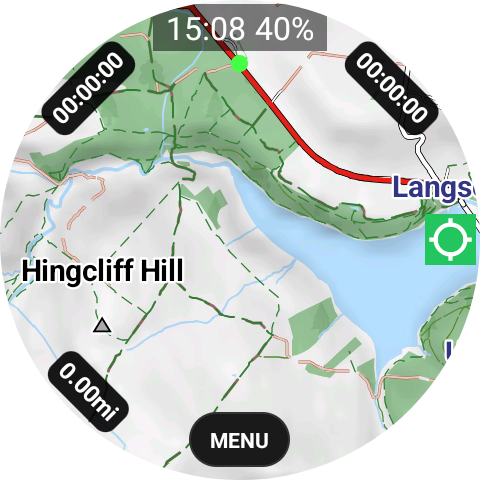
First Launch
New users are directed to download a map — a local map from the current GPS position is offered automatically.
Location Button
Red — snaps back to your current location
Green — free movement, pan the map freely
Clock (tap)
Red dot — locks the map; the menu is still usable
Green dot — free movement map
Compass
Red — locked north
Green — compass moves with the map
Blue — map locked north, compass moves
Zoom
+ / −
2
Navigation Menu
Opened with a long press on the Map screen
Navigation Menu
Opened with a long press on the Map screen
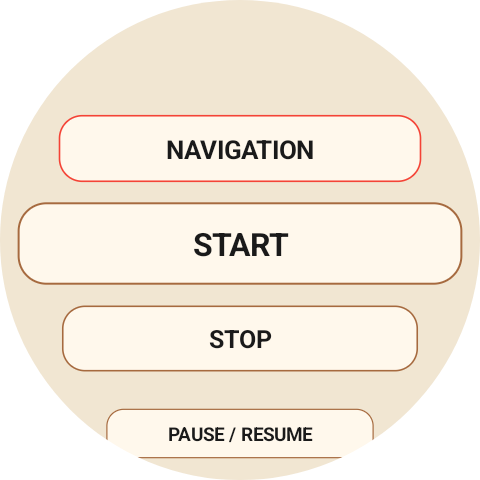
Navigation Menu
Load RouteOpens the GPX list to load a route onto the map
Live Route EditingIf Nav is active and you edit the route on the phone, send the updated GPX to the watch using the same filename. The watch detects the update and automatically refreshes the active route.
Start
Stop
Pause
Reverse RouteRequires a route to already be added
Quick Settings
Watch Theme
Units
Small Units
Map ControlCompass / Zoom / Off
Nav DistanceShows remaining distance if a GPX route is loaded on the Map screen
Nav TurnsTurn-by-turn notifications, plus an overlay on the Map screen
Auto Pause
3
Global Menu
Opened with the menu button on the Map screen
Global Menu
Opened with the menu button on the Map screen
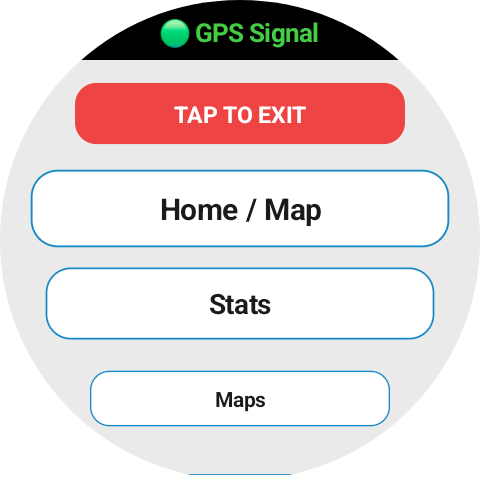
Stats
Stats PagesConfigured in Settings — up to 10 pages, 3 stats per page
Maps
Local MapsGets your location and suggests the local map
InstalledTap to delete an installed map
Main MapThe world split into sections — smaller than full maps, so easier to download
HillshadingSame layout as Main Map — adds relief hillshading to the map
ContoursAdds contour lines to the map
GPX Tracks
Download OSMVia an OSM traces URL / trace number
Track ListImported and recorded tracks — tap for details, swipe across to view distance, elevation details, elevation chart, send to phone, and delete
Settings
SettingsOpens the full Settings list — see below
Home / Map
Home / MapReturns to the Map screen
Exit
ExitTap twice to exit
4
Settings
Settings
Display
Watch ThemeLight / Fjord / Dark / Forest / Sand
Stats Text SizeS / M / L
Map
Map StyleMapsforge / TOPO
Map ThemeLight / Fjord / Dark / Min×3 / Trail Difficulty / Custom
Trail DifficultyMapsforge theme using OSM SAC trail difficulty: Strolling / T1 / T2 / T3 / T4 / T5 / T6
Custom ThemesBuild in-app, or import an XML file from the companion app
Topo Zoom1× / 1.5× / 2×Replaces Map Theme when Map Style is TOPO
Map SettingsOpens the detailed overlay controls below
Lock Zoom15 / 16 / 17 / 18
Ele Colour7 colours
Map Settings
Map ControlOff / Compass / Zoom
Control SideLeft / Right
Top BarOn / 5s / 10s / Off
Map Text Colour7 colours
Location ButtonLock / Free colour
Scale BarOn / Off
Import ColourRed / Green / Yellow / Blue
Import WidthTrack line width
Bezel StatsOn / OffOpens Bezel Config to choose 2 or 4 stats
Recording
Activity10 types
Rec DistanceMin GPS point distance
Rec TimeMin GPS point interval
Auto PauseOff / 2s / 5s / 10s
Pause SpeedSpeed threshold
Record ColourRed / Green / Yellow / Blue
Record WidthTrack line width
Heart RateOn / Off
StepsOn / Off
CountdownOff / 3s / 5s
Lap SplitsOn / Off
GPS FilteringOn / Off
Navigation
Nav DistanceOn / Off
Nav ElevationOn / Off
Nav TurnsOn / Off
Nav ArrowsOn / Off
Climb ViewShows climbs on a loaded GPX, numbered around the route. On a climb, the Map screen shows the Climb #, an elevation chart of the climb, % gradient, and time remaining in Small Units (set by Settings). When the climb view is active and the elevation chart is showing, tap the screen to minimize the chart. Tap the blue button in the middle of the screen to open the elevation chart again.
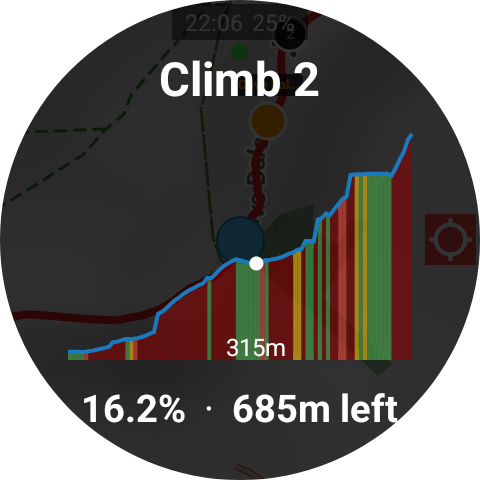
Climb View Alert Distance50 / 100 / 150 / 200 / 500mAlerts this distance before a climb begins
Off-Route AlertOn / OffHaptic vibration — fires even with the screen off
Alert Distance20 / 30 / 40 / 50m
Stats Settings
Stats PagesOpens the stats page config screen
CaloriesOpens the calories screen
BarometerOn / Off
Pace AvgAveraging window
System
Distancekm / mi
Small UnitsMetres / Feet
Keep Screen OnOn / Off
Keep ActiveBackground service on / off
Battery SaverDark theme, minimal map, disables HR / Steps / Nav overlays / Bezel. Restores all on disable.
Auto Actions
Workout SummaryStats · Map · Save prompt
Setting or control
Green state
Red state
Blue state